

Exporting Transactions
List wallet transactions and export them to CSV or PDF.
Endpoint Overview
The following endpoints are available within the transaction listing feature:
| HTTP Request | Description |
|---|---|
GET /public/accounts/transactions | List transactions |
GET /public/accounts/transactions/csv | Export transactions to CSV format. |
GET /public/accounts/transactions/pdf | Export transactions to PDF format. |
Exporting Wallet Transactions to JSON
The simplest way to retrieve a list of transactions is by using the GET /public/accounts/transactions endpoint. This endpoint allows you to retrieve transaction data with the flexibility of general paging parameters. By specifying page, size, and sort options, you can control the number of transactions returned, the order, and the page number for easier navigation through large datasets (for more details, see Pagination).
Request:
GET /public/accounts/transactions?CreatedFrom=2024-10-02¤cyCode=BTC&page=0&size=2Here we use the GET /public/accounts/transactions endpoint with specified query parameters:
CreatedFrom=2024-10-02- filtering entries from 2024-10-02.page=0- specifying the first page.size=2- showing two entries per page.
Response:
{
   "content": [
        {
            "amount": "-0.00006",
            "currencyCode": "BTC",
            "description": "BTC send: 0.00006 BTC from [email protected] to [email protected].",
            "status": "PROCESSED",
            "transactionId": "SC006127826",
            "updateDate": "2024-10-02T09:15:32.000Z"
        },
        {
            "amount": "-0.26",
            "currencyCode": "XRP",
            "description": "XRP send: 0.00006 XRP from [email protected] to [email protected].",
            "status": "PROCESSED",
            "transactionId": "SC006127824",
            "updateDate": "2024-10-02T09:14:54.000Z"
        }
    ],
    "pageable": {
        "sort": {
            "sorted": false,
            "empty": true,
            "unsorted": true
        },
        "pageSize": 2,
        "pageNumber": 1,
        "offset": 2,
        "paged": true,
        "unpaged": false
    },
    "totalPages": 19,
    "totalElements": 37,
    "last": false,
    "number": 1,
    "size": 2,
    "numberOfElements": 2,
    "sort": {
        "sorted": false,
        "empty": true,
        "unsorted": true
    },
    "first": false,
    "empty": false
}
Exporting Transactions to File Formats
Retrieving Wallet id
idTo export transactions based on a specific wallet, the first step is retrieving the wallet id. This can be done by using one of the available GET endpoints in the /public/accounts/ path.
For example, the following endpoint call retrieves a wallet id based on the currency code BTC.
Request:
GET /public/accounts/ids?currencyCode=BTCResponse:
[
    "df0cbbec-1e98-495e-9543-08a3c2e343ed"
]
This response provides the unique wallet id associated with the specified currency, in this case, BTC.
Exporting to CSV
Exporting transactions in CSV format provides a versatile, spreadsheet-compatible file. CSV files are particularly useful when you need to analyze data in tools like Excel or Google Sheets.
To export to CSV, perform a GET request with the wallet id specified in the query as follows:
GET /public/accounts/transactions/csv?id=df0cbbec-1e98-495e-9543-08a3c2e343edResponse:
A downloadable .csv file:
Transaction No,Status,Description,Amount,Currency,Date
SC006126995,PROCESSED,EUR buy for exchange. 5.04 EUR,5.04,EUR,2024-12-31 08:56
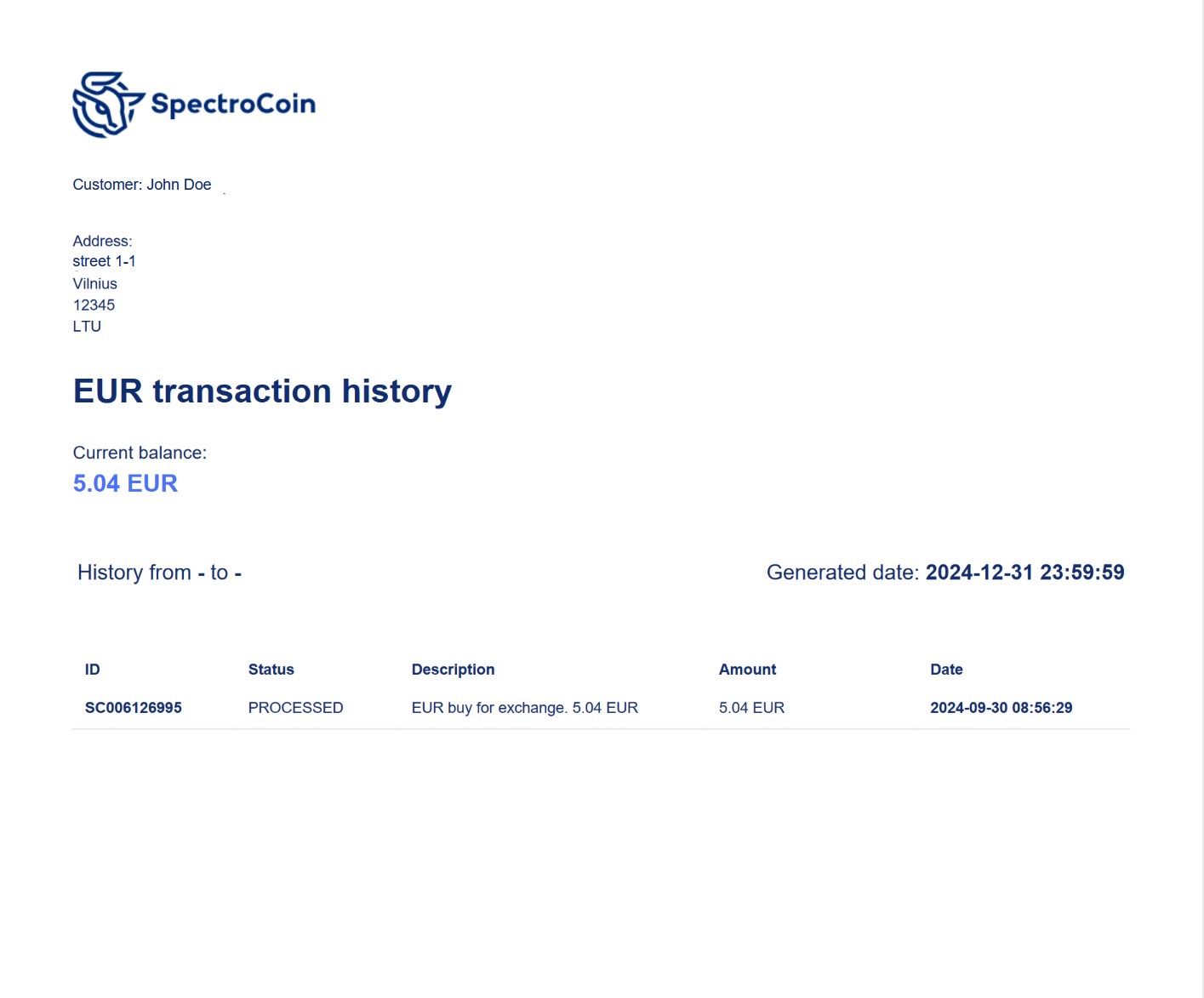
Exporting to PDF
Exporting transactions in PDF format is ideal for creating a snapshot of your data for reporting or presentation purposes. A PDF file maintains the visual layout and can be easily shared with others while preserving the data’s format.
To export to PDF, perform a GET request with the wallet id specified in the query as follows:
GET /public/accounts/transactions/pdf?id=1d3e1c22-f4a7-4cae-b43e-5e5d5a8cd721The response is a downloadable .pdf file:
Transaction Statuses
Every transaction reports one of three statuses:
| Status | Description |
|---|---|
PENDING | The transaction has been accepted and is still being processed. The amount is not final until it settles. |
PROCESSED | The transaction completed successfully and is reflected in the wallet balance. |
FAILED | The transaction did not complete. No funds moved, and the amount is not reflected in the wallet balance. |
Updated about 2 months ago